Notice
Before starting, This Guide will not cover -
Anything related to making animations/re-targeting from scratch.`
You’ll need to learn general Blender knowledge via Youtube/Guides, as it’s too expansive in it’s own right.
This guide is subject to being redundant over time, as the game develops or new methods and workarounds are discovered.
Due to limited knowledge/ not having access to the Animgraph2 Editor,
We can only assume from current testing that we NEED to keep to FPS/DURATION/FRAME In order to avoid animation issues.
S2 Viewer for previewing animation FPS/DURATION/FRAME
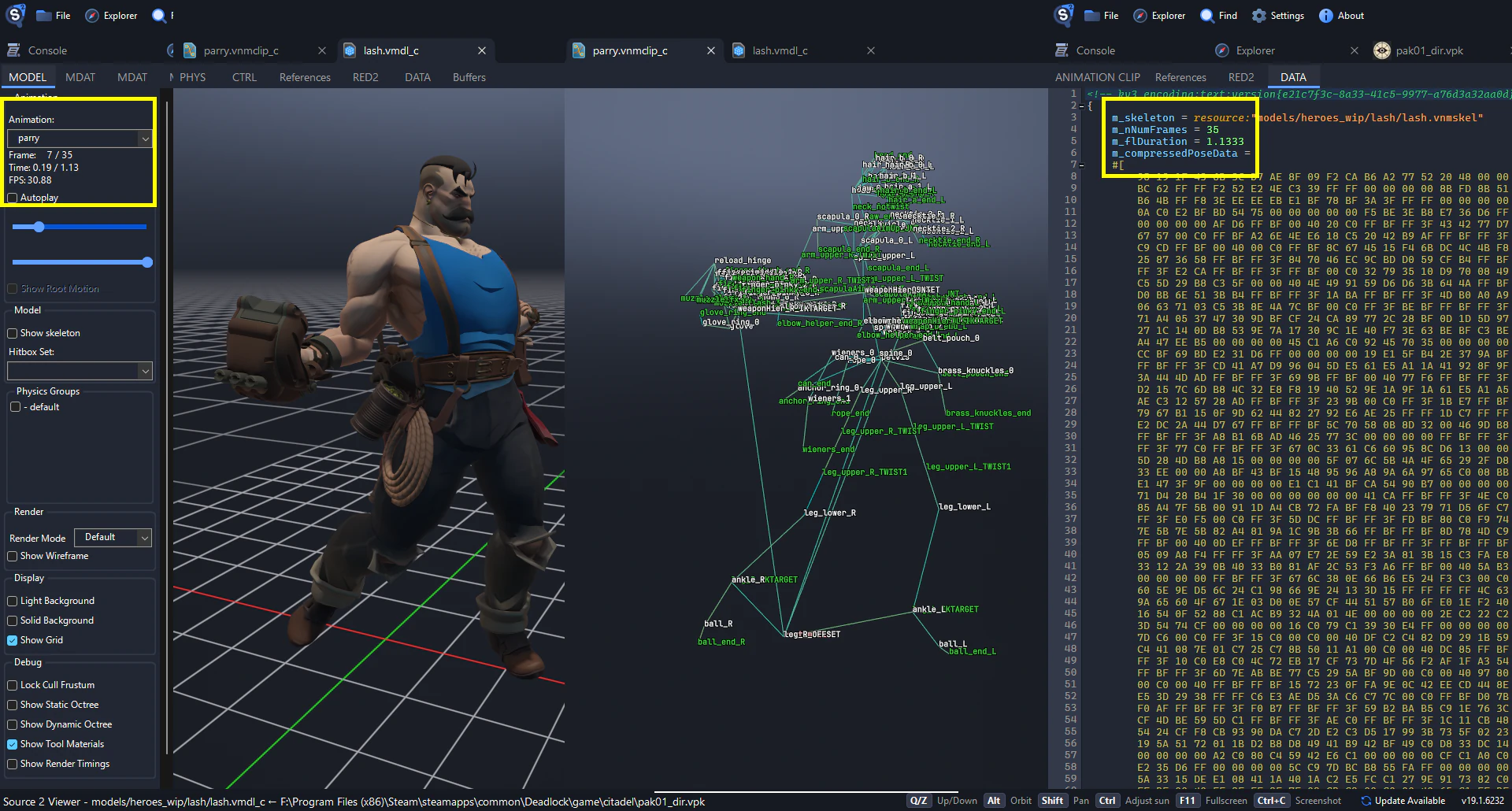
Search for the animation you’ll be wanting to replace. Take note of the FPS/DURATION/FRAME in the data section.
For importing animations, You can use GLTF import method or Decompile/Export a single vnmclip to DMX
The only tool that can currently import DMX animations to Blender 4.5+ is this addon here:
https://github.com/ToppiOfficial/KitsuneSourceTools
Blender section
This part will only instruct on setting Constraints for IK bones /weapons.
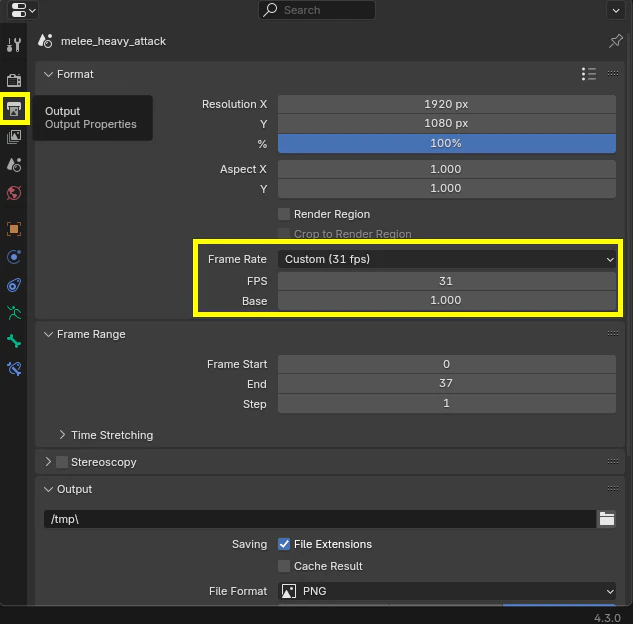
Set the scene FPS before beginning (This doesn’t have to be down to the decimal etc- 30.88fps = 31fps )
You’ll find this under Properties > Output > Frame range
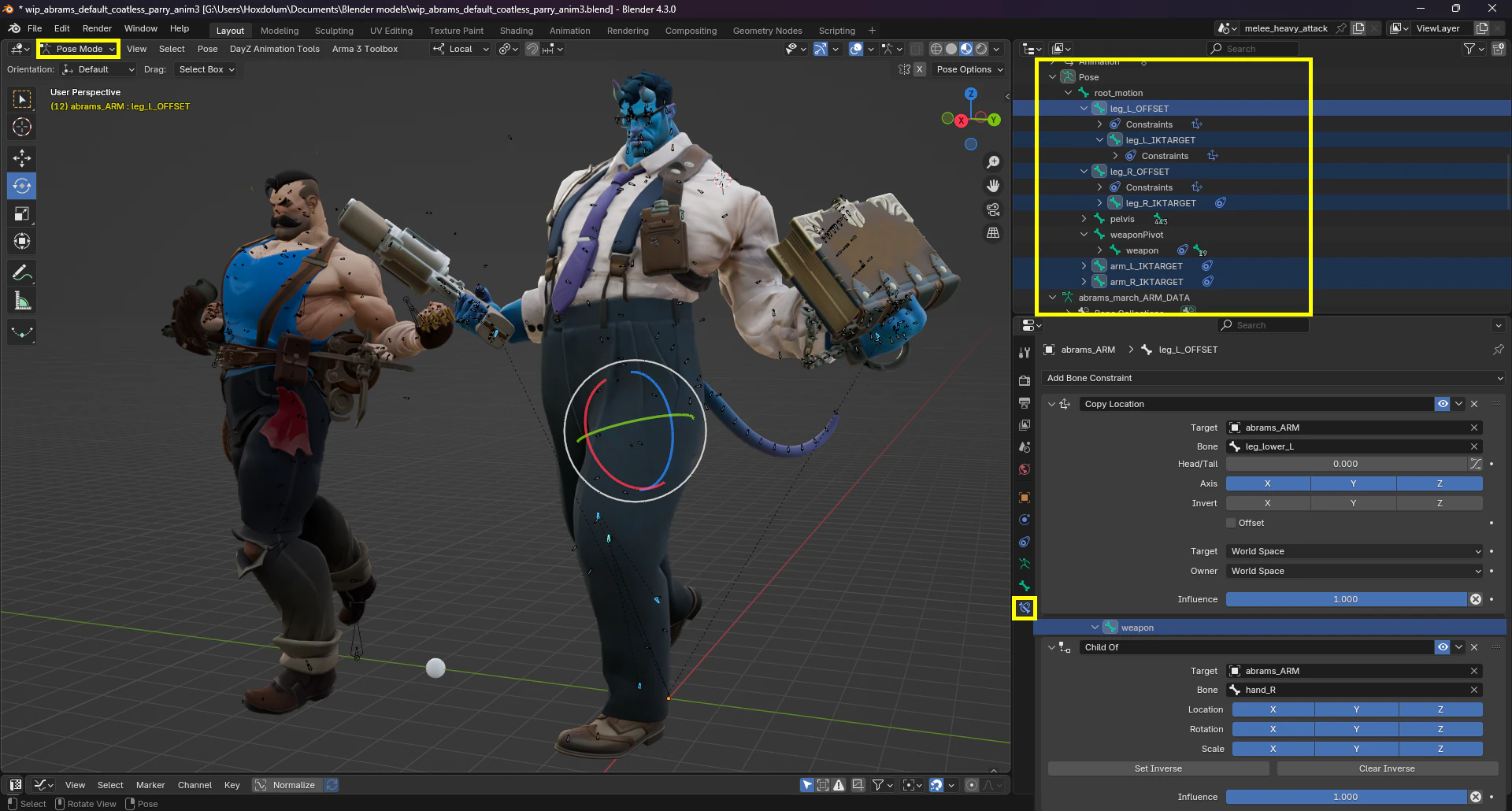 Select your Armature , Go from
 Object mode to Pose mode
expand Armature till you see Root_ and Ik_ , Weapon
Highlight one of the IK_Properties tab > Select Bone Constraints
Add> Copy Location and Copy Rotation
Target Armature name here
Bone bone name here ( Lower_
After applying, This will now attach the IK_
Weapons/props will need to use Child Of Constraint
on 1st frame, Pose the object into position Then add Child Of constraint > Set inverse
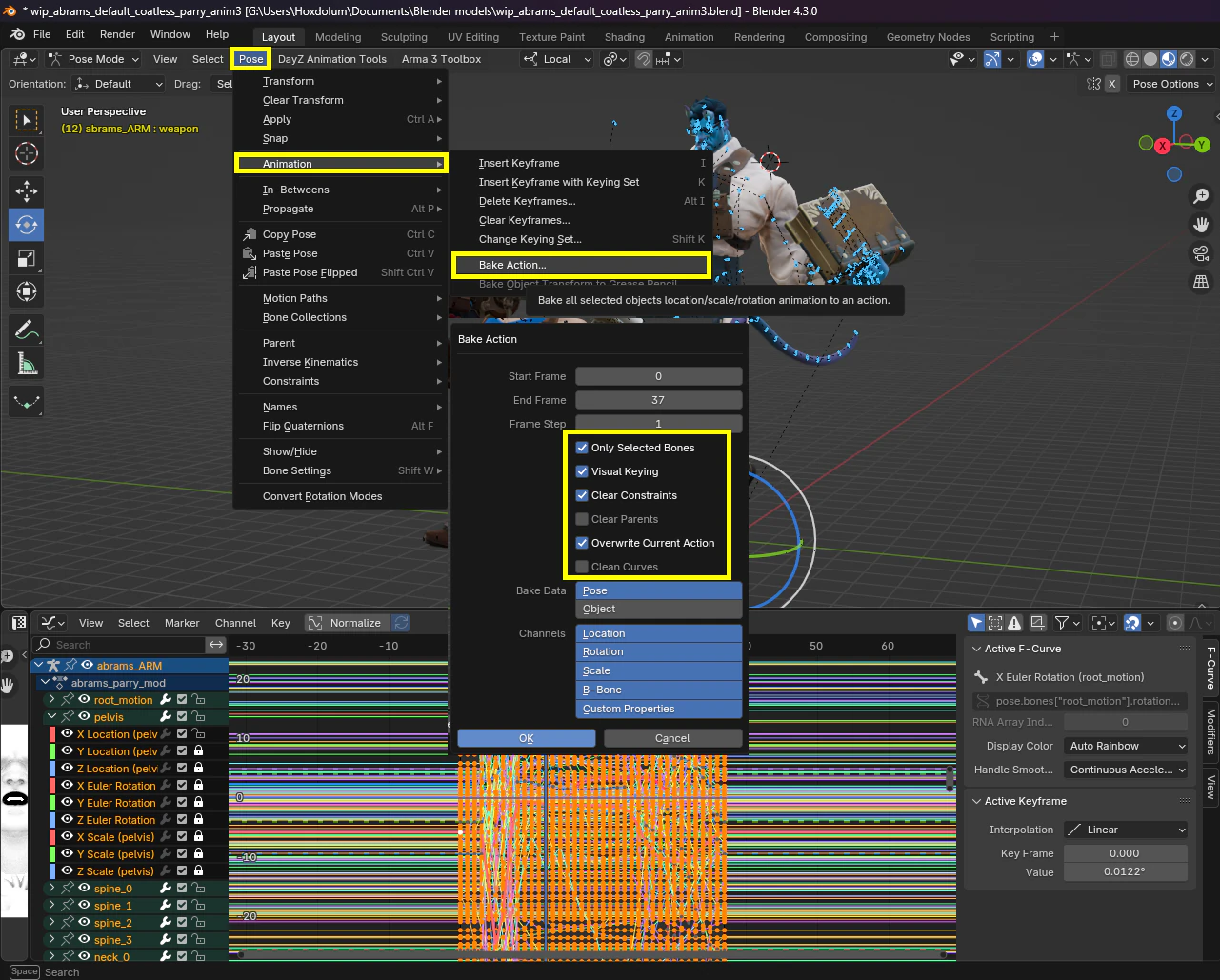
Once your constraints are in place and custom animation is done, Make sure to bake/clear constraints/keying.
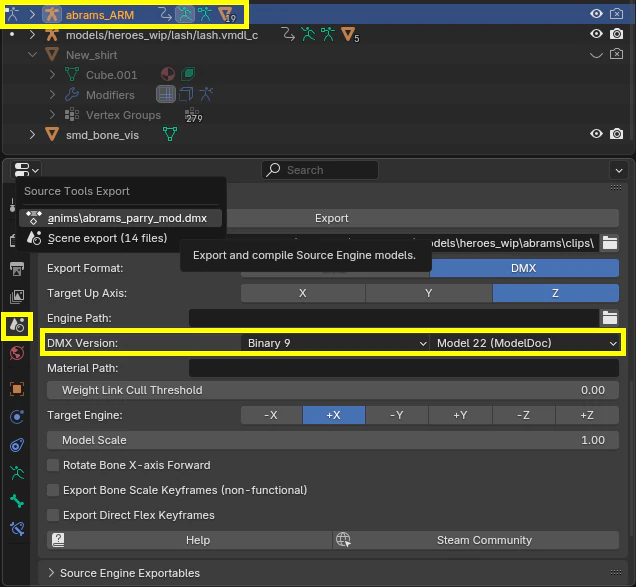
Highlight your skeleton with animation set and export DMX , Binary 9 Model 22
We can now move onto Modeldoc!
Modeldoc
It’s Recommended to use CSwin64 or CS2 tools, CSDK12 does not come with AG2 Clip Viewer and compiles vnmclip in an older Defunct format.
CSwin64 and CS2 tools can help visualize that the animation is indeed working after conversion with the Modeldoc’s Clip Viewer.
Make sure you’ve decompiled the vnmskel file and placed your custom DMX animations into the “Clips” folder. USE THE LATEST DEV BUILD OF SOURCE 2 VIEWER TO DO THIS!
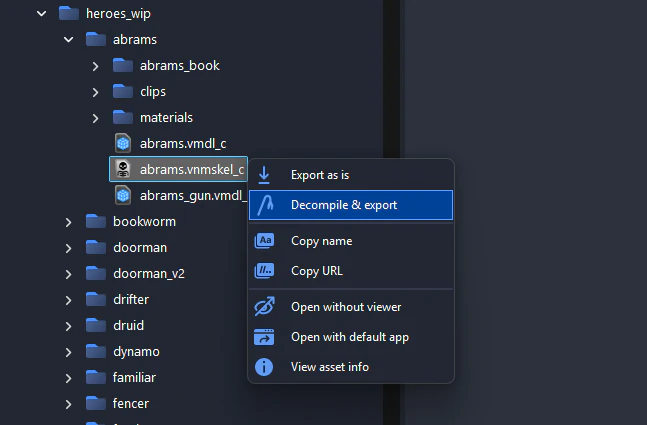
To import Anim files , go to Add> “Add Simple Animations” > Import selected DMX.
It should now appear in Animation list
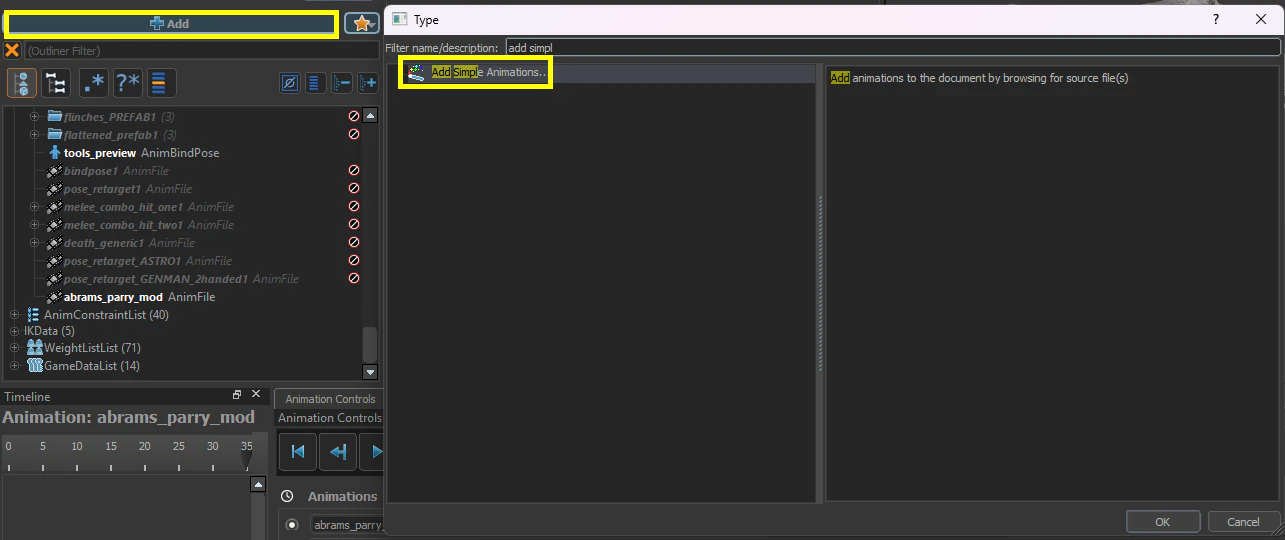
Make any changes to the Frames/Frame Rate before the next step.
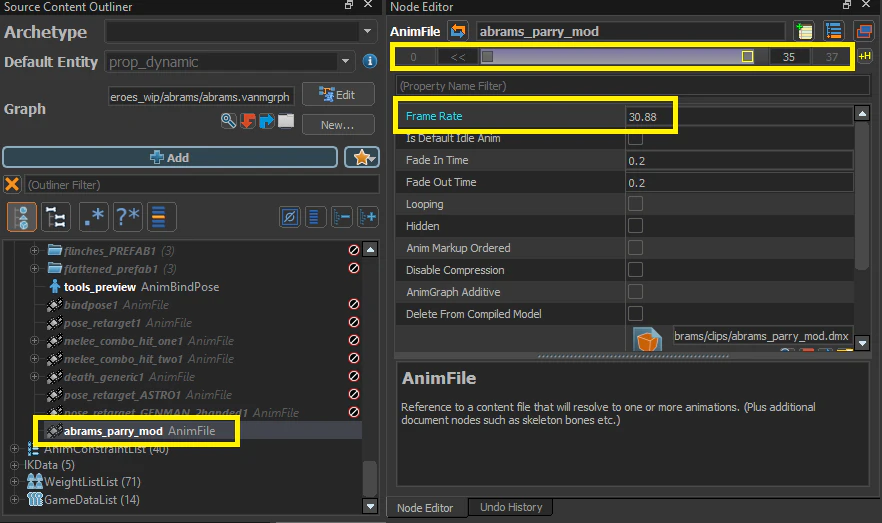
Clear your Model of any NMSkeletonList/AnimGraph2List nodes, else the program will state
” Found existing (default) AG2 graph. Ignoring requested creation. ”

Go to the top bar in Modeldoc Window, Tools> Make Default Animgraph2
Select your vnmskel, Tick Convert Anim Sequences to Clips
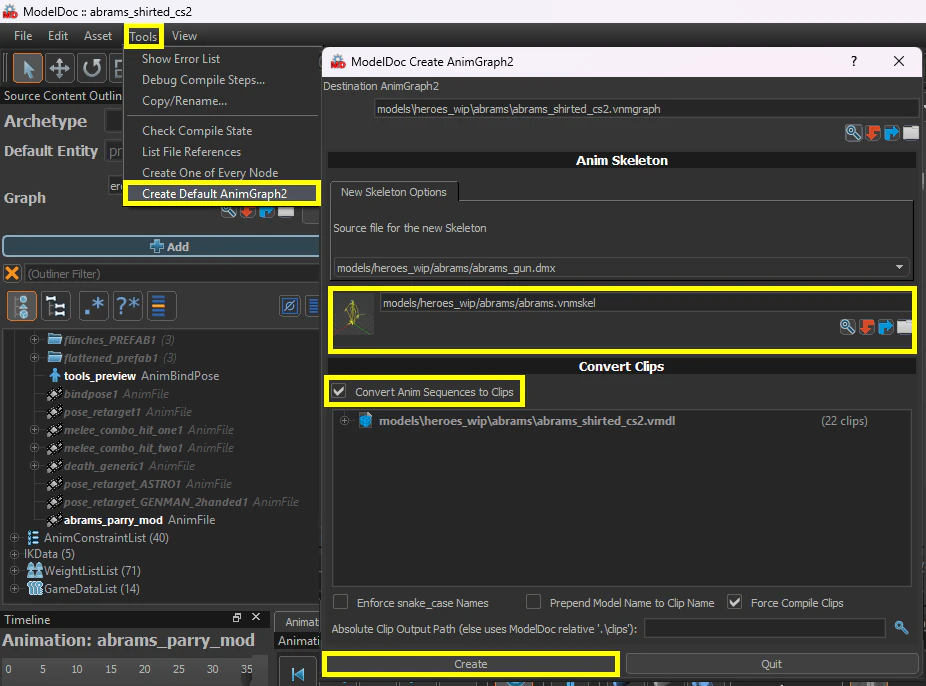
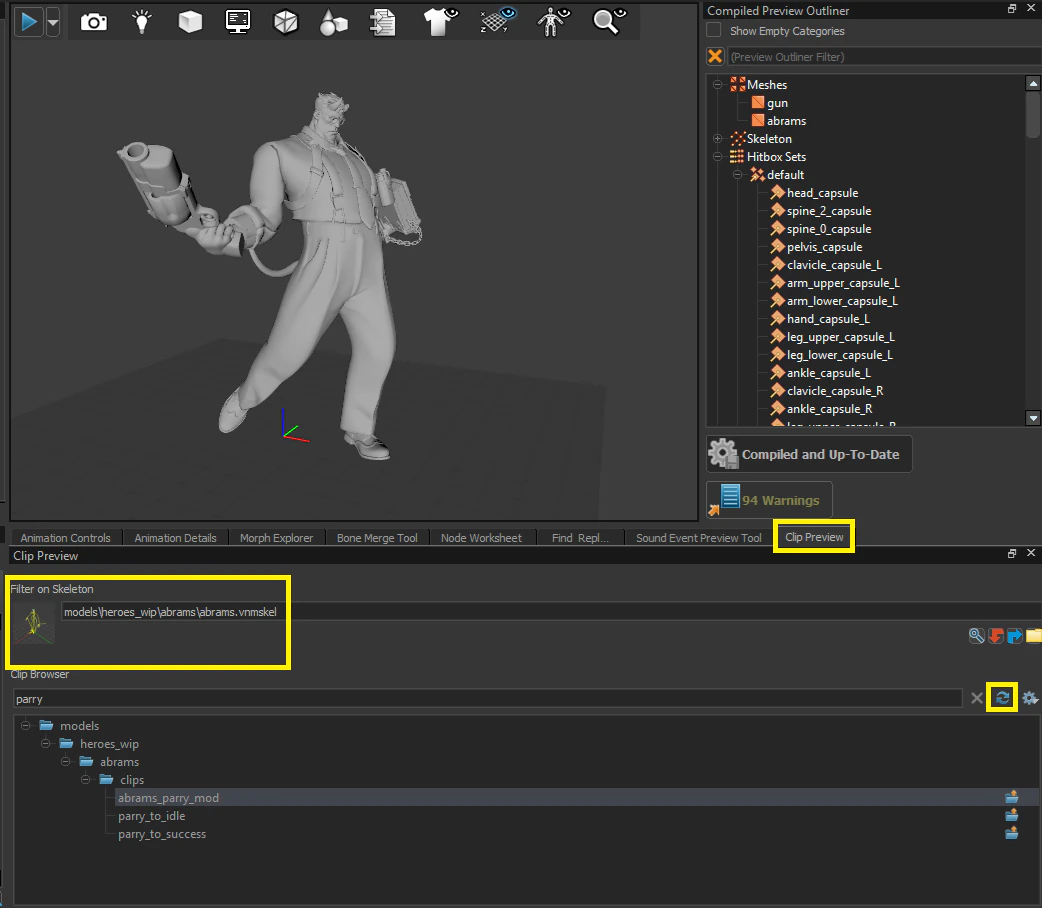
This will convert existing DMX animations to vnmclips and make them visible in Clip Preview.
(THIS WILL NOT MAKE A FUNCTIONAL ANIMGRAPH2 GRAPH AS THERE IS NO ANIMGRAPH2 EDITOR).
Legacy animevents like sound, bodygroup and etc will be converted and applied to the source vnmclip file. Same goes for AnimSubtract to make additive animations.
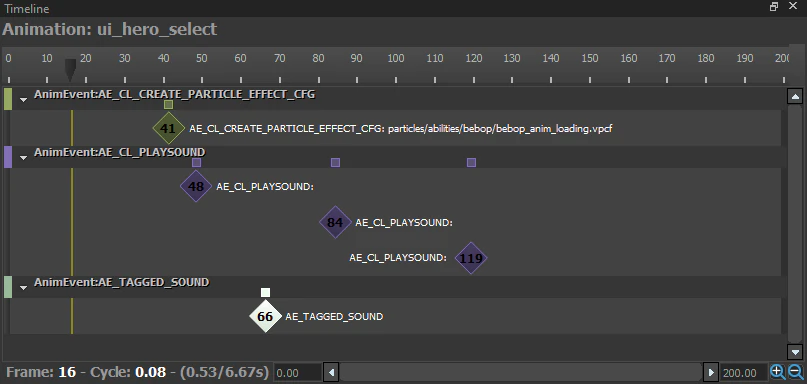
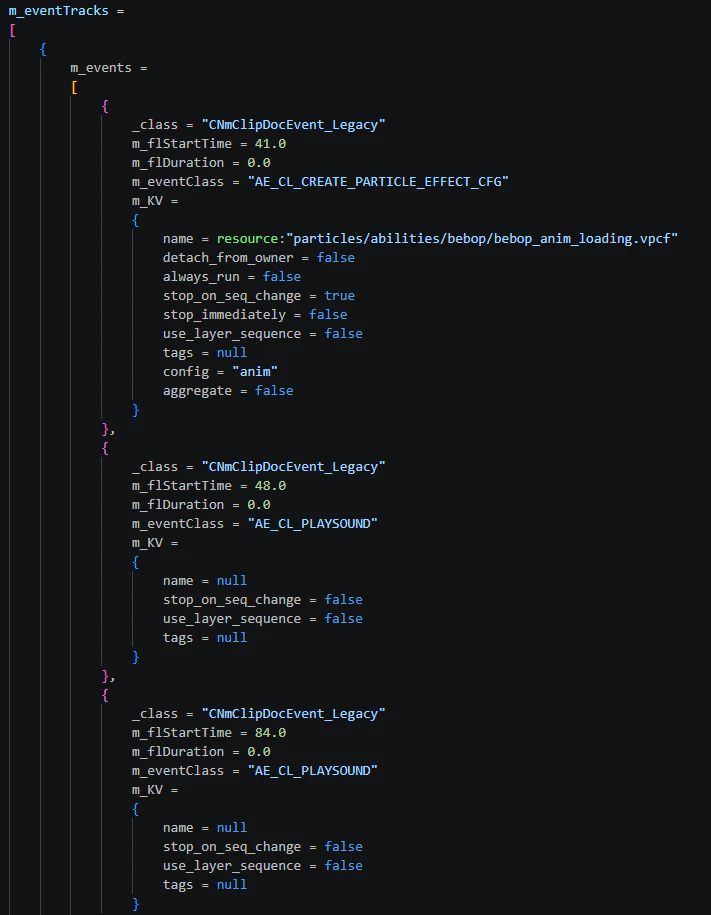
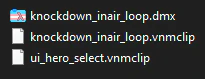
If the original animation has ID Events like CNmIDEvent in the compiled vnmclip file’s m_, make sure you decompile the original vnmclip file first to have the decompiled events like CNmClipDocEvent_, and after replacing the animation dmx, make sure the events are still present in the vnmclip file.
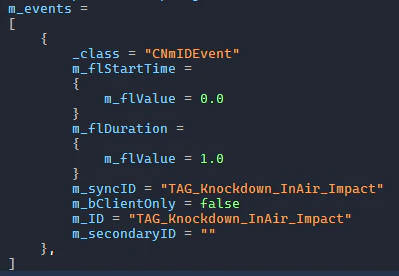
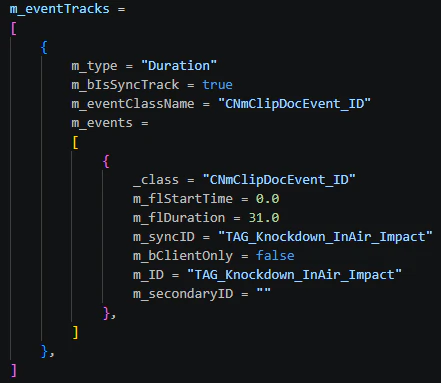
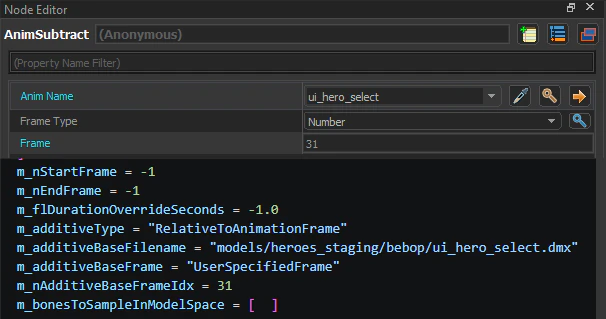
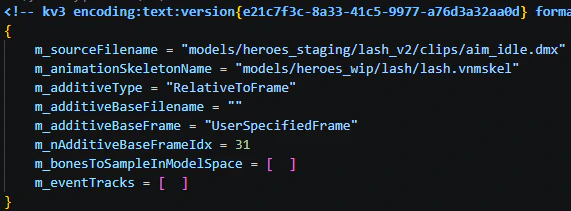
Aim Matrix animations like aim_ are made from subtracting the half frame of the animation - for 61 frames it’s 31 frames, for 101 frames it’s 51 frames.
m_additiveType = "RelativeToFrame"
m_additiveBaseFilename = "" m_additiveBaseFrame = "UserSpecifiedFrame" m_nAdditiveBaseFrameIdx = 31
On the bottom tab , Select Clip preview tab.
Search/select your vnmskel for Filter on Skeleton if nothing is filled in.
In Clip Browser click the rotating Arrows to refresh scene. The bottom should generate a list of active VnmClips , Search for your custom Animation and check it plays correct in scene.
Here’s a quick video of the Vnmclip convert process.
IK Chains
PLEASE MAKE YOUR IK CHAINS!
Else models will end up with flipped/Broken limbs in-game!
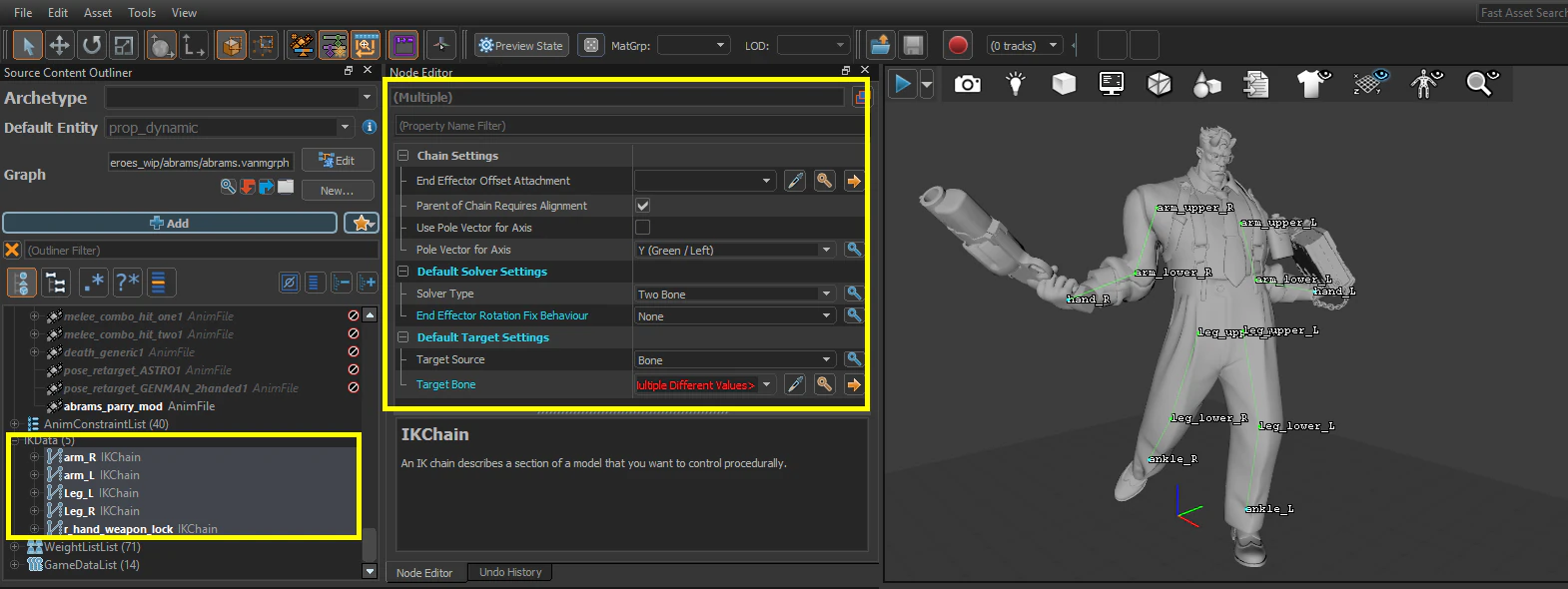
You can check these sections in S2 Viewer or on an Extracted VMDL_
Once you’ve applied your custom animation/IK chains, It’s time to pack!
VnmClip /VnmSkel/VPK packing
Make sure you’ve named the custom Anim to the name you’re replacing and using the Compiled version VnmClip_
To note - It is not advised to pack VmSkel_ into your VPK unless you’re editing bonemasks.
Hopefully after a few trial and errors, you’ll have a working Custom Animation in place.
Troubleshoot Section
( My long animation on top of a short one is playing SUPER FAST in-game! ) ( But I want to put this extremely long animation on top of a short one! )
If you decide to stick say (TF2 Conga Dance) of 85 frames into a walk cycle (15 frames) this will play at 5.5x times the speed (30fps > 150fps+)
What will happen if you decide to do this - On client side the animation will play as normal. But on Enemy/Server side, The animation will play based on the these limitations and compress playing 85 frames into 15 frames.
You’ll regret the choices made, Seeing the enemy doing that custom animation at turbo speed for the duration of the match.
(Help! My characters limbs are facing the wrong way!)
Please make sure you’ve applied all IK bones with constraints and baked the animation.
Check that the IK_
If it’s a Custom model you’ve not made but using custom animations on, It could be they’ve not applied IK_
(My model is static pose’d / Only parts are moving)
Make sure you’ve not packed the custom vnmskel (the original that exist in-game is fine)
Bodymask may be active for selected animations, these are used for separating upper/lower rig’s in specific tasks etc (Aiming/Running/Melee)
(My model is flipped/ Off-set in Clip preview)
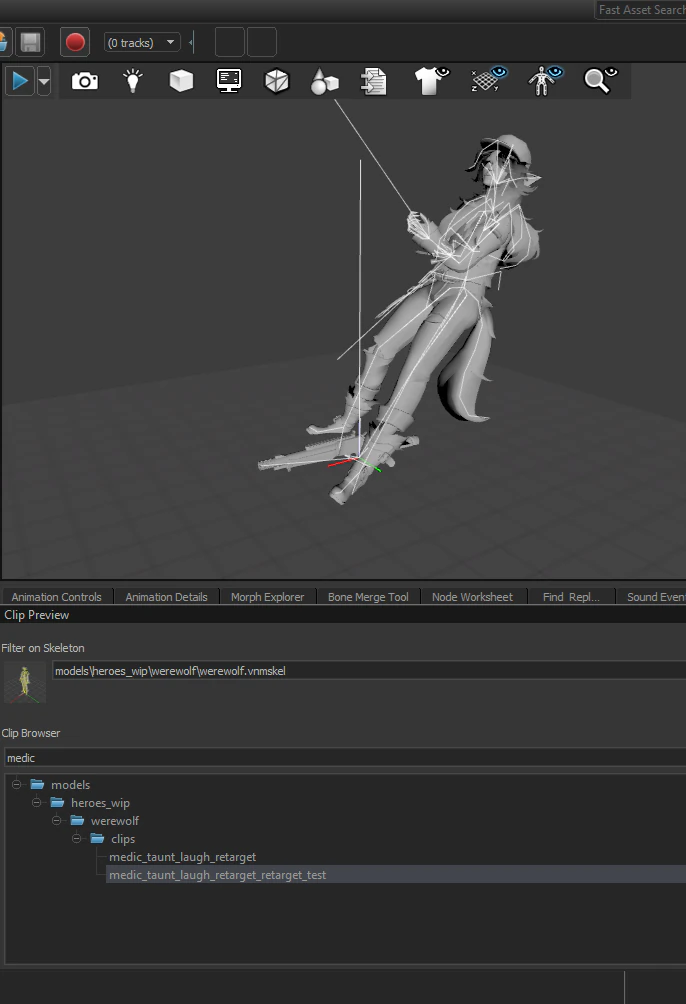
Root_ may be the issue , Make sure there are no animations keyframes
(Unless it’s for specific animations requiring extracted motions)